You may some times feel crazy about some exceptions in your application. You have no idea where it is happening in the code and what you can do now is debugging the suspicious location in the issue happening scenario. Let me welcome you to a better approach with your VC++ debugger, so that you will get a better context of the issue causing exception. Follow the steps,
1. Debug your application (Either start with debugger or attach your process with the debugger).
2. In the VC 6 debugger choose Debug->Exceptions then you can see a dialog with various exception types.
3. Click and select all the Exceptions, now press OK.
4. Run your scenario.
5. When an exception happen a message box will be shown in the debugger and execution will break.
6. Now you can get the call stack where exception happens. For this check the Context combo box in the debugger IDE.
7. Now select each location in the call stack and interpret the cause (you can get the value of the variables).
Friday, September 11, 2009


Tuesday, September 8, 2009
Change Drive letters
Here is how to change or swap drive letter of the disk drives.
1. Take MyComputer->Manage
2. In the management console select Storage->Disk Management
3. Now Add... , Change... or Remove drive letter.
4. For swapping drive letters between disk drives first remove drive letters of both the drives and then select the needed letters one after another.
1. Take MyComputer->Manage
2. In the management console select Storage->Disk Management
3. Now Add... , Change... or Remove drive letter.
4. For swapping drive letters between disk drives first remove drive letters of both the drives and then select the needed letters one after another.
Blocking websites in your local machine
Do you want to restrict some of the sites to open up in your machine ? You can do with some browsers but same can be easily find out by others. Here is another way for blocking sites in the local machine.
1. Take C:\Windows\system32\drivers\etc
2. Open file hosts in C:\Windows\system32\drivers\etc
3. Add a new line to the hosts specifying the website name.
For example if you want to block www.youtube.com and www.orkut.com please add the below lines to the file hosts
127.0.0.1 www.youtube.com
127.0.0.1 www.orkut.com
You may need to restart your browser for making it effect.
1. Take C:\Windows\system32\drivers\etc
2. Open file hosts in C:\Windows\system32\drivers\etc
3. Add a new line to the hosts specifying the website name.
For example if you want to block www.youtube.com and www.orkut.com please add the below lines to the file hosts
127.0.0.1 www.youtube.com
127.0.0.1 www.orkut.com
You may need to restart your browser for making it effect.
Renaming file/folder with empty name or funny symbols
You may have tried renaming a file/folder with empty name but windows will never allow it. Here is a way to rename your folder.
1. Right click the file/folder and select Properties.
2. In the Properties dialog take General tab and delete the current name.
3. Keep the cursor in the name box, Press down Alt key and press 255 (from number pad)
4. Now press OK, selected file/folders name will be changed to empty.
5. If you use other combination such as 256, 257 etc with Alt key it will result in creating funny symbols as name of the file/folder.
I tell you there is a blank icon available with WINDOWS for setting blank icon for a folder. In the Customize tab, click Change Icon... and you can select empty icon and press Ok.
1. Right click the file/folder and select Properties.
2. In the Properties dialog take General tab and delete the current name.
3. Keep the cursor in the name box, Press down Alt key and press 255 (from number pad)
4. Now press OK, selected file/folders name will be changed to empty.
5. If you use other combination such as 256, 257 etc with Alt key it will result in creating funny symbols as name of the file/folder.
I tell you there is a blank icon available with WINDOWS for setting blank icon for a folder. In the Customize tab, click Change Icon... and you can select empty icon and press Ok.
Friday, September 4, 2009
[Utility][WinDbg] !htrace for debugging handle leak
Windbg Debugger’s !htrace extension is very good at debugging handle leaks. See the below steps how you can do it.
1. Install Debugging Tool for windows from here.
2. Run WinDbg installed with Debugging Tools in Step 1.
3. Take File->Attach to a process... menu and select your application in the process list
4. Application will break and change in to debug mode
5. Take File->Symbol File path and add the path where your application's pdb file is available
6. In the debug prompt enter !htrace -enable and press enter.
7. Now take Debug->Go menu, then you can operate on your application
8. Now run your scenario where your application is assumed to have handle leak.
9. Now take Debug->Break menu, for changing the application to debug mode.
10. Now enter !htrace -diff in the debug prompt and press enter. Here it list the handle leak logs.
Below is an example of the log generated for 4 opened handle in my test app. From the log you can see where exactly the handle is leaked in the code.
0:001>
1. Install Debugging Tool for windows from here.
2. Run WinDbg installed with Debugging Tools in Step 1.
3. Take File->Attach to a process... menu and select your application in the process list
4. Application will break and change in to debug mode
5. Take File->Symbol File path and add the path where your application's pdb file is available
6. In the debug prompt enter !htrace -enable and press enter.
7. Now take Debug->Go menu, then you can operate on your application
8. Now run your scenario where your application is assumed to have handle leak.
9. Now take Debug->Break menu, for changing the application to debug mode.
10. Now enter !htrace -diff in the debug prompt and press enter. Here it list the handle leak logs.
Below is an example of the log generated for 4 opened handle in my test app. From the log you can see where exactly the handle is leaked in the code.
0:001>
!htrace -diff
Handle tracing information snapshot successfully taken.
0x26 new stack traces since the previous snapshot.
Ignoring handles that were already closed...
Outstanding handles opened since the previous snapshot:
--------------------------------------
Handle = 0x0000070c - OPEN
Thread ID = 0x00001758, Process ID = 0x00001248

0x7c8308eb: kernel32!CreateEventA+0x00000068
*** WARNING: Unable to verify checksum for D:\TestFolder\MiscTest\Release\MiscTest.exe
0x0040172b: MiscTest!CMiscTestDlg::OnButtonHandle+0x0000001a
0x73dd24c0: MFC42!_AfxDispatchCmdMsg+0x00000082
0x73dd23bf: MFC42!CCmdTarget::OnCmdMsg+0x0000010a
0x73e3dead: MFC42!CPropertySheet::OnCmdMsg+0x0000001d
0x73dd3244: MFC42!CWnd::OnCommand+0x00000053
0x73dd1bf1: MFC42!CWnd::OnWndMsg+0x0000002f
0x73dd1b9b: MFC42!CWnd::WindowProc+0x00000024
0x73dd1b05: MFC42!AfxCallWndProc+0x00000091
0x73dd1a58: MFC42!AfxWndProc+0x00000036
0x73e6847d: MFC42!AfxWndProcBase+0x00000039
--------------------------------------
Handle = 0x00000710 - OPEN
Thread ID = 0x00001758, Process ID = 0x00001248

0x7c8308eb: kernel32!CreateEventA+0x00000068
0x0040172b: MiscTest!CMiscTestDlg::OnButtonHandle+0x0000001a
0x73dd24c0: MFC42!_AfxDispatchCmdMsg+0x00000082
0x73dd23bf: MFC42!CCmdTarget::OnCmdMsg+0x0000010a
0x73e3dead: MFC42!CPropertySheet::OnCmdMsg+0x0000001d
0x73dd3244: MFC42!CWnd::OnCommand+0x00000053
0x73dd1bf1: MFC42!CWnd::OnWndMsg+0x0000002f
0x73dd1b9b: MFC42!CWnd::WindowProc+0x00000024
0x73dd1b05: MFC42!AfxCallWndProc+0x00000091
0x73dd1a58: MFC42!AfxWndProc+0x00000036
0x73e6847d: MFC42!AfxWndProcBase+0x00000039
--------------------------------------
Handle = 0x00000714 - OPEN
Thread ID = 0x00001758, Process ID = 0x00001248

0x7c8308eb: kernel32!CreateEventA+0x00000068
0x0040172b: MiscTest!CMiscTestDlg::OnButtonHandle+0x0000001a
0x73dd24c0: MFC42!_AfxDispatchCmdMsg+0x00000082
0x73dd23bf: MFC42!CCmdTarget::OnCmdMsg+0x0000010a
0x73e3dead: MFC42!CPropertySheet::OnCmdMsg+0x0000001d
0x73dd3244: MFC42!CWnd::OnCommand+0x00000053
0x73dd1bf1: MFC42!CWnd::OnWndMsg+0x0000002f
0x73dd1b9b: MFC42!CWnd::WindowProc+0x00000024
0x73dd1b05: MFC42!AfxCallWndProc+0x00000091
0x73dd1a58: MFC42!AfxWndProc+0x00000036
0x73e6847d: MFC42!AfxWndProcBase+0x00000039
--------------------------------------
Handle = 0x00000718 - OPEN
Thread ID = 0x00001758, Process ID = 0x00001248

0x7c8308eb: kernel32!CreateEventA+0x00000068
0x0040172b: MiscTest!CMiscTestDlg::OnButtonHandle+0x0000001a
0x73dd24c0: MFC42!_AfxDispatchCmdMsg+0x00000082
0x73dd23bf: MFC42!CCmdTarget::OnCmdMsg+0x0000010a
0x73e3dead: MFC42!CPropertySheet::OnCmdMsg+0x0000001d
0x73dd3244: MFC42!CWnd::OnCommand+0x00000053
0x73dd1bf1: MFC42!CWnd::OnWndMsg+0x0000002f
0x73dd1b9b: MFC42!CWnd::WindowProc+0x00000024
0x73dd1b05: MFC42!AfxCallWndProc+0x00000091
0x73dd1a58: MFC42!AfxWndProc+0x00000036
0x73e6847d: MFC42!AfxWndProcBase+0x00000039
--------------------------------------
Displayed 0x4 stack traces for outstanding handles opened since the previous snapshot.
Thursday, September 3, 2009
Ghostzilla - The Invisible browser
Are you looking for an idea to browse the internet with out leaving any trace for your boss, colleagues or roomies? You may be having difficulty in hiding your browser window if some one is over your shoulders all of a sudden. Let me say you about a browser which will save you from such mess, Ghostzilla - The Invisible browser.
Ghostzilla browser for Windows is a tool that shields you from the looks of people around you, when they try to see if you are surfing the Web. With Ghostzilla, they see your normal work screen. You see the Web page, drawn to appear inside your work application and to look like that application to a bystander. If someone comes too close, move the mouse away from the Web page and it disappears, leaving the original application frame.
If you wanna try this follow the below steps,
1. Download it from here.
2. Extract the downloaded GhostzillaCD-1.0.1-free-v1.zip
3. Run the Start-Ghostzilla-CD.exe from the path \GhostzillaCD-1.0.1-free-v1\program\
4. Press No in the dialog shown.
5. You can see GhostZilla browser displayed and embeded in topmost window.
6. If it is disappeared, do the following to make it visible
- Click the left most edge of your screen
- Now click the right most edge of your screen
- Now click the left most edge of the screen again. Ahh it is displayed !
7. For hiding the Ghostzilla just move your mouse away from the Ghostzilla.
8. By default it will appear black&white(to have privacy), to have color view choose Setup->Hiding Level 1 menu.
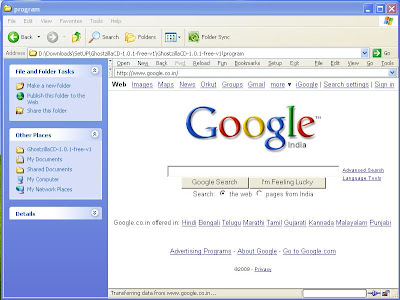
Ghostzilla embeded in explorer window.
For getting a hand full of options and short keys read Instructions.html in the downloaded zip. Remember one thing if you brows with Ghostzilla history and usage details can be tracked as with other browsers, this browser is only meant for hiding what you doing in your screen (huh are you still browsing??)
Ghostzilla browser for Windows is a tool that shields you from the looks of people around you, when they try to see if you are surfing the Web. With Ghostzilla, they see your normal work screen. You see the Web page, drawn to appear inside your work application and to look like that application to a bystander. If someone comes too close, move the mouse away from the Web page and it disappears, leaving the original application frame.
If you wanna try this follow the below steps,
1. Download it from here.
2. Extract the downloaded GhostzillaCD-1.0.1-free-v1.zip
3. Run the Start-Ghostzilla-CD.exe from the path \GhostzillaCD-1.0.1-free-v1\program\
4. Press No in the dialog shown.
5. You can see GhostZilla browser displayed and embeded in topmost window.
6. If it is disappeared, do the following to make it visible
- Click the left most edge of your screen
- Now click the right most edge of your screen
- Now click the left most edge of the screen again. Ahh it is displayed !
7. For hiding the Ghostzilla just move your mouse away from the Ghostzilla.
8. By default it will appear black&white(to have privacy), to have color view choose Setup->Hiding Level 1 menu.

Ghostzilla embeded in explorer window.
For getting a hand full of options and short keys read Instructions.html in the downloaded zip. Remember one thing if you brows with Ghostzilla history and usage details can be tracked as with other browsers, this browser is only meant for hiding what you doing in your screen (huh are you still browsing??)
Saturday, July 25, 2009
Fixing MSMQ re installation issue
Have you ever got the below error when you try to install MSMQ ?
Error Code: 0x42C Error Description: The dependency service or group failed to start.
How To Fix ?
For fixing this issue we need to make sure that all the depended services of MSMQ service should be started.
Following are the depended services of MSMQ in various operating system.
Windows XP
* Distributed Transaction Coordinator
* Message Queuing access control
* NT LM Security Support Provider
* Reliable Multicast Protocol Driver
* Remote Procedure Call (RPC)
* Security Accounts Manager
Windows 2003 server
* Message Queuing access control
* NT LM Security Support Provider
* Remote Procedure Call (RPC)
* RMCAST (Pgm) Protocol Driver
* Security Accounts Manager
Windows Vista
* Message Queuing access control
* Remote Procedure Call (RPC)
* Windows Event Log
For starting a service,
1. Right click on "My Computer" and select "Manage"
2. Select "Services and Applications" in left pane and Select "Services" right pane.
3. Right click and "start" the needed service. For disabled services you need to change it to Automatic/Manual before Starting
Now Start the depended service and try installing MSMQ again.
Error Code: 0x42C Error Description: The dependency service or group failed to start.
How To Fix ?
For fixing this issue we need to make sure that all the depended services of MSMQ service should be started.
Following are the depended services of MSMQ in various operating system.
Windows XP
* Distributed Transaction Coordinator
* Message Queuing access control
* NT LM Security Support Provider
* Reliable Multicast Protocol Driver
* Remote Procedure Call (RPC)
* Security Accounts Manager
Windows 2003 server
* Message Queuing access control
* NT LM Security Support Provider
* Remote Procedure Call (RPC)
* RMCAST (Pgm) Protocol Driver
* Security Accounts Manager
Windows Vista
* Message Queuing access control
* Remote Procedure Call (RPC)
* Windows Event Log
For starting a service,
1. Right click on "My Computer" and select "Manage"
2. Select "Services and Applications" in left pane and Select "Services" right pane.
3. Right click and "start" the needed service. For disabled services you need to change it to Automatic/Manual before Starting
Now Start the depended service and try installing MSMQ again.
Wednesday, June 17, 2009
Restore your Windows system
Have you ever caught up with a situation, that you have installed something or did some manual registry edits and result in an unrecoverable situation? This may be due to - registry got corrupted or some other registration errors. In such a situation, most of us may go for some trials to get rid of the issues facing and if found unsuccessful, end up in deciding reinstalling windows. But you have to understand about the System Restore tool (Start->Programs->Accessories->System Tools->System Restore) supplied with Windows Accessories from Windows XP and later versions.
System Restore


System Restore
System Restore helps you restore your computer's system files to an earlier point in time. It's a way to undo system changes to your computer without affecting your personal files, such as e‑mail, documents, or photos.
If the installation of a program or a driver cause an unexpected change to your computer or cause Windows to behave unpredictably. Usually, uninstalling the program or driver corrects the problem. If uninstalling does not fix the problem, you can try restoring your computer's system to an earlier date when everything worked correctly.
System Restore uses a feature called System Protection to regularly create and save restore points on your computer. These restore points contain information about registery settings and other system information that Windows uses. You can also create restore points manually.
System Restore is not intended for backing up personal files, so it cannot help you recover a personal file that has been deleted or damaged. You should regularly back up your personal files and important data using a backup program.
If the installation of a program or a driver cause an unexpected change to your computer or cause Windows to behave unpredictably. Usually, uninstalling the program or driver corrects the problem. If uninstalling does not fix the problem, you can try restoring your computer's system to an earlier date when everything worked correctly.
System Restore uses a feature called System Protection to regularly create and save restore points on your computer. These restore points contain information about registery settings and other system information that Windows uses. You can also create restore points manually.
System Restore is not intended for backing up personal files, so it cannot help you recover a personal file that has been deleted or damaged. You should regularly back up your personal files and important data using a backup program.
See the below steps in Windows Vista showing Restoring to a previous point

.

.

Wednesday, April 29, 2009
Fixing windows installer not working
Have you ever come up with some problems while using windows installer for installing components ? Here is an issue which is widely seen, when trying to install some application using msi installer you will be shown with a message "The Windows Installer service on Local Computer started and then stopped. Some services stop automatically if they have no work to do, for example, the Performance Logs and Alerts service." and installation stops. This may be due to the reason, the Windows Installer files that are on your hard disk are damaged or are missing.
Solution
For fixing this issue you may need to register the Windows installer or reinstall windows installer. For registering Windows installer do the below steps,
1. Take Start->Run
2. In the Run window enter msiexec /unregister and press OK
3. Again in the Run window enter msiexec /regserver and press OK
Now try installing with Windows installer everything will work fine!.
Solution
For fixing this issue you may need to register the Windows installer or reinstall windows installer. For registering Windows installer do the below steps,
1. Take Start->Run
2. In the Run window enter msiexec /unregister and press OK
3. Again in the Run window enter msiexec /regserver and press OK
Now try installing with Windows installer everything will work fine!.
Monday, April 27, 2009
[Utility] 'Over Disk' visualize your disk usage with a Radial map
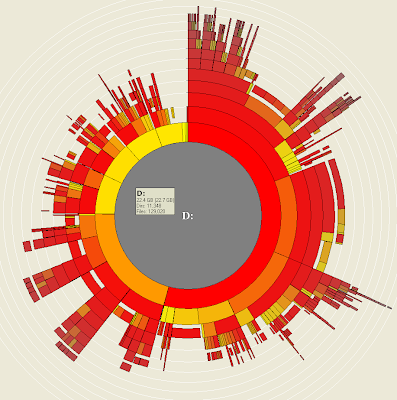
In my previous post I introduced you a tool SpaceSniffer for visualizing your disk usage. Let me show you one more disk usage visualizer OverDisk, which display the disk usage as a radial map. You can select a drive or directory for analyzing with OverDisk and you will be provided with a radial map showing each items inside the selection. On mouse over the details of the folders will be shown. On further selection on the items displayed you will be traversed to the selected folder's radial map. This Windows tool can download from here.

Saturday, April 25, 2009
[Utility] Visualize drive space with 'SpaceSniffer'
SpaceSniffer is drive space visualizer utility for windows user. It is a utility that gives you an idea of how folders and files are structured on your disks. You will have immediate perception of where big folders and files are situated on your devices.
Start a scan process and see the overall situation. Bigger are the elements on the view, bigger are folders and files on your disk. You need more detail on a big folder? Just single click on it. The selected element will be detailed with its content. Start a scan process and see the overall situation. Bigger are the elements on the view, bigger are folders and files on your disk. You need more detail on a big folder? Just single click on it. The selected element will be detailed with its content. You can also filter on file size, file date and combine all filters.
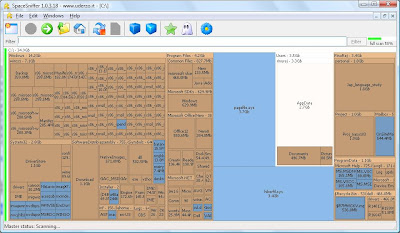
Download SpaceSniffer and give a try.
Start a scan process and see the overall situation. Bigger are the elements on the view, bigger are folders and files on your disk. You need more detail on a big folder? Just single click on it. The selected element will be detailed with its content. Start a scan process and see the overall situation. Bigger are the elements on the view, bigger are folders and files on your disk. You need more detail on a big folder? Just single click on it. The selected element will be detailed with its content. You can also filter on file size, file date and combine all filters.

Download SpaceSniffer and give a try.
Friday, April 24, 2009
[Utility] 'Jing' screen/video capture tool
Do you want to try a sophisticated Screen/Video capture tool ? I suggest Jing. I found myself comfortable with this free tool. I was taking snapshots and mark on the same in a traditional way, Prnt Screen -> Paste to mspaint -> Mark there -> Save and use. If everything available in a single easy to use tool then you will opt the same right ? 


You can take snapshot, mark, highlight and quote on it. Jing also provides video capture. So go for below steps and make a trial run,
2. Install Jing.
3. Run Jing, you can see a round sun appearing at middle of your screen and set to the top middle screen.
4. Mouse over the yellow sun.
5. Select the capture option.
6. Select the area/window.
7. Press Save button displayed in the button panel shown.
You can run video capture in similar way. Just see a snapshot created/edited with Jing.

Share what you captured to Every one !!!
Just tell Jing where to send the screenshot and—BAM!—it's there and ready to share. When you send to a destination like Screencast.com or Flickr, Jing even places a hyperlink on your clipboard.
Remember, if you are a Windows user, you should have Windows XP or Vista and .NET Framework 3.0 for running Jing. Mac users need Mac OS X 10.4.11, or 10.5.5 or later and QuickTime 7.5.5 or later.
Thursday, April 23, 2009
[Utility] 'Circle Dock' a quick launcher for you!
Are you thinking of having a Circular & Spiral dock with cool looks, as a quick launcher for your Windows ? Then here is a cool open source Circle Dock for you.

As the name suggest its circular and spiral ! Its time for removing the messy desktop icons and bring Circular Dock, save the space/time and spice your desktop. I am sure your colleague will say wow !
For taking this to your desktop just follow the below steps,
1. Download Circle Dock from here.
2. Run Circle Dock.
3. Drag and drop the applications to the Circle Dock.
4. Click on the icon shown on Circle Dock of the application will launch it!
Remember you should have WindowsXP or Vista, .Net Framework 2.0 should be installed and a some what recent graphics card. So just try it and discover lot more (untold by me) features available !!!

As the name suggest its circular and spiral ! Its time for removing the messy desktop icons and bring Circular Dock, save the space/time and spice your desktop. I am sure your colleague will say wow !
For taking this to your desktop just follow the below steps,
1. Download Circle Dock from here.
2. Run Circle Dock.
3. Drag and drop the applications to the Circle Dock.
4. Click on the icon shown on Circle Dock of the application will launch it!
Remember you should have WindowsXP or Vista, .Net Framework 2.0 should be installed and a some what recent graphics card. So just try it and discover lot more (untold by me) features available !!!
Sunday, April 19, 2009
[VC++] Change color of Progress bar
Have you ever thought of changing the color of the progress bar you created using CProgressCtrl? PBM_SETBARCOLOR is the message which will help you to change the color of progress bar. See the below code snippet showing how to send the above said message for changing the progress bar color.
// Change progress bar color to yellow
m_ProgressCtrl.SendMessage( PBM_SETBARCOLOR, 0, RGB ( 255, 255, 0 ));
[VC++] Disabling Ctrl+Alt+Del key
Simplest way to disable the Ctrl+Alt+Del key press is to use the API SystemParametersInfo(). See the below code snippet.
SystemParametersInfo ( SPI_SETSCREENSAVERRUNNING, TRUE, NULL, 0 );
[VC++] MFC Collection classes
Collection class
A collection class is characterized by its "shape" and by the types of its elements. The shape refers to the way the objects are organized and stored by the collection. MFC provides three basic collection shapes: lists, arrays, and maps (also known as dictionaries).
MFC provides collection classes of three categories.
Array
List
Map
Below is a list of classes under each category and type of elements each store,
MFC Array Classes
CByteArray - 8-bit bytes (BYTEs)
CWordArray - 16-bit words (WORDs)
CUIntArray - Unsigned integers (UINTs)
CPtrArray - void pointers
CObArray - CObject pointers
CStringArray - CStrings
MFC List Classes
CObList - CObject pointers
CPtrList - void pointers
CStringList - CStrings
MFC Map Classes
CMapWordToPtr - Stores void pointers keyed by WORDs
CMapPtrToWord - Stores WORDs keyed by void pointers
CMapPtrToPtr - Stores void pointers keyed by other void pointers
CMapWordToOb - Stores CObject pointers keyed by WORDs
CMapStringToOb - Stores CObject pointers keyed by strings
CMapStringToPtr - Stores void pointer keyed by strings
CMapStringToString - Stores strings keyed by other strings
A collection class is characterized by its "shape" and by the types of its elements. The shape refers to the way the objects are organized and stored by the collection. MFC provides three basic collection shapes: lists, arrays, and maps (also known as dictionaries).
MFC provides collection classes of three categories.
Array
List
Map
Below is a list of classes under each category and type of elements each store,
MFC Array Classes
CByteArray - 8-bit bytes (BYTEs)
CWordArray - 16-bit words (WORDs)
CUIntArray - Unsigned integers (UINTs)
CPtrArray - void pointers
CObArray - CObject pointers
CStringArray - CStrings
MFC List Classes
CObList - CObject pointers
CPtrList - void pointers
CStringList - CStrings
MFC Map Classes
CMapWordToPtr - Stores void pointers keyed by WORDs
CMapPtrToWord - Stores WORDs keyed by void pointers
CMapPtrToPtr - Stores void pointers keyed by other void pointers
CMapWordToOb - Stores CObject pointers keyed by WORDs
CMapStringToOb - Stores CObject pointers keyed by strings
CMapStringToPtr - Stores void pointer keyed by strings
CMapStringToString - Stores strings keyed by other strings
[VC++] Expanding MFC macros
You may be seeing the MFC macros DECLARE_MESSAGE_MAP, BEGIN_MESSAGE_MAP etc from the day one you started using MFC. Have you ever thought of what goes inside these macros ?
Follow the below steps and you can see these macros expanded,
1. Select Project->Settings->Link tabs in the Visual Studio editor.
2. In the 'Project Options' edit box delete all the options and type /EP in it.
3. Now compile the file. You will see the expanded code in the output window.
Follow the below steps and you can see these macros expanded,
1. Select Project->Settings->Link tabs in the Visual Studio editor.
2. In the 'Project Options' edit box delete all the options and type /EP in it.
3. Now compile the file. You will see the expanded code in the output window.
Tuesday, April 7, 2009
Google tips for effective googling
Most of us use Google in our daily life, in one way or other. Here are a few tips to Google more effectively:

Use "info:" for accessing the above specified tips. For e.g.: "info:http://google.com" will show the options for searching similar to, link to, google's cache, from the site options. Use "related:" for searching related sites of the specified site. For e.g.: "related:http://google.com" will display the results with sites similar/related to google. Use "filetype:" for specifying the file type of the search results. For e.g.: ".net tutorial filetype:ppt" will display .net PPT Tutorials. Use google as a calculator simply enter the expression in the search box and Go. Use google as a convertor. For eg: try "1 USD to JPY"

- Use quotation marks for searching exact phrases. For e.g.: "Your exact phrase" will return results containing the exact phrase Your exact phrase.
- Use "tilde" for getting search with synonym. For e.g.: "~Health decission" will display the results for the synonyms of Health decission.
- Use "minus sign" for filtering the search results removing the word you do not want. For e.g.: "nano -ipod" results nano results other than ipod nano.
- Use "define:" for getting the defnition/meaning of a given word/phrase. For e.g.: "define: electromagnetic spectrum" will show the definitions of electromagnetic spectrum.
- Use "site:" for limiting the search to the specified site or domain only. For e.g.: "site:freshtechies.blogspot.com" will display the search result for the pages from the site freshtechies.blogspot.com. If you give "VC++" site:freshtechies.blogspot.com it will display the VC++ result from the pages of that site.
See more search operators and usages here.
Saturday, March 28, 2009
[Utility] Process Explorer for Software Developers
In my previous post I told you about the Microsoft TechNet site and in the features I have mentioned about Windows SystInternals free utilities for software developers. Let me introduce a tool Process Explorer to show you the relevance of SystInternals tools for a Software Developer. It is an extended TaskManager and can replace Task Manager.
What is Process Explorer ?
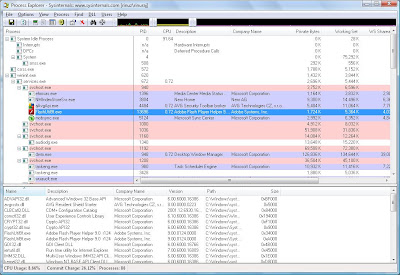
Process Explorer is a system monitoring utility which can be used to track down system problems. Process Explorer is an advanced process management utility that picks up where Task Manager leaves off.
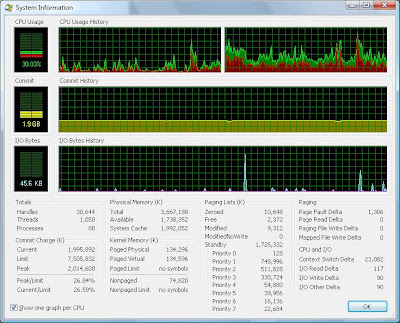
Key Features
What is Process Explorer ?
Process Explorer is a system monitoring utility which can be used to track down system problems. Process Explorer is an advanced process management utility that picks up where Task Manager leaves off.


Key Features
- Detailed information about a process including its icon, command-line, full image path, memory statistics, user account, security attributes etc can be viewed.
- A particular process can be selected and list the DLLs it has loaded or the operating system resource handles it has open.
- Powerful search capability that will quickly show you which processes have particular handles opened or DLLs loaded.
- System Information & Performance graph can be shown for whole system and for each process.
Download
It is a free ware, you can download Process Explorer from here. .
Note: If you have any memory or process related issue, just try process explorer, you will get additional information about the issue for sure !
Microsoft TechNet for Software Developers
Are you a windows (based) application developer and have you ever heared of Microsoft Technet or visited it's website ? If you have not then you have missed strong knowledge support.
Microsoft TechNet is a Microsoft site for techical information, developer utilities, news, blogs, events for software professionals. It can be accessed through the link http://technet.microsoft.com.
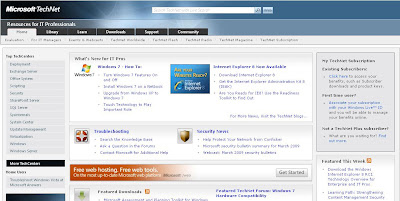
Website features include,
Microsoft TechNet is a Microsoft site for techical information, developer utilities, news, blogs, events for software professionals. It can be accessed through the link http://technet.microsoft.com.

Website features include,
- TechNet Library is a source of technical information for IT professionals and advanced users. The technical content is freely available on the web
- TechNet Forums are the web-based forums used by the community to discuss a wide variety of IT professional topics.
- TechNet Blogs is an exclusive blogging platform of Microsoft employees.
- Windows SysInternals show cases a collection of free utilities for Software Developers.
So software developers please visit and see what you have here special to make your life easy !
Subscribe to:
Posts (Atom)


 Posts
Posts