// Return Unique String ID each timeThis function uses CoCreateGuid() function which create an absolutely unique number that we can use as a persistent identifier. UuidToString () is used convert this Unique ID to a string. Do not forget to call RpcStringFree() for deallocating the memory if you are calling UuidToString (). You may need to include Rpc.h and link to Rpcrt4.lib for building the function.
const CString CreateUniquieID()
{
GUID UIDObj;
// Create Unique ID
CoCreateGuid( &UIDObj );
unsigned char* pUIDStr;
// Convert Unique ID to String
UuidToString( &UIDObj, &pUIDStr );
CString csUIDStr( pUIDStr );
// Free allocated string memory
RpcStringFree( &pUIDStr );
return csUIDStr;
}
Friday, February 27, 2009
[VC++] Creating Unique ID with CoCreateGuid()
At some point of a programmers life he will be in need to create some unique name. For example in one of my previous post for Preventing Multiple Instances I have suggested using a unique name for the mutex. Here is a utility function which will help you create a unique string.


Wednesday, February 25, 2009
[VC++] Extracting and using icon from other Applications
If you want to have your application using the icons of some other application in an easy way ExtractIcon() or ExtractIconEx() serves you the best. See the below code snippet demonstrating how to extract and use the icon of calculator as your application icon.
HICON hIcon;Do not forget to destroy the icon handle calling DestroyIcon(), when no longer needed.
// Extract icon of Windows Calculator
hIcon = ExtractIcon( AfxGetApp()->m_hInstance, "C:\\WINDOWS\\system32\\calc.exe", 0 );
// Set the extracted icon as the application's icon.
SetIcon( hIcon, FALSE );
[VC++] Hiding application button from Taskbar
If you do not want to show your application on Windows Taskbar while it is running, modify the CMainFrame::PreCreateWindow() by adding WS_EX_TOOLWINDOW style and removing WS_EX_APPWINDOW style to Create Structure. See the below code which will do the same.
BOOL CMainFrame::PreCreateWindow(CREATESTRUCT& cs)
{
 if( !CFrameWnd::PreCreateWindow(cs) )
  return FALSE;
    // Adding Tool window style
    cs.dwExStyle = WS_EX_TOOLWINDOW ;
    // Removing App window style
    cs.dwExStyle &= ~WS_EX_APPWINDOW ;
    return TRUE;
}
Tuesday, February 24, 2009
[VC++] Removing 'Untitled' from Doc/View App Titlebar
Most of you may get wearied of seeing the 'Untitled' caption on your title bar when you create a Document/View Architecture application, say SDI application. What we actually seeing on an SDI title bar is Document Name - Application name, by default your document name will be 'Untitled' and application name will be IDR_MAINFRAME's value in the string table. The reason why you are seeing this is because of a style set by default FWS_ADDTOTITLE to the CREATESTRUCT data structure. So inorder to remove the 'Untitled'(or document name) from your mainframe title bar, remove the FWS_ADDTOTITLE style from the create structure of the mainframe window. There is one more style which worth a mention at this point, FWS_PREFIXTITLE this is the one responsible showing the document name followed by the application name. If we remove this style and if FWS_ADDTOTITLE is not removed then window will show title as Application name - Document Name.
Suppose if my Application name is TestGlobalObjects then see the default title bar with Untitled.

Changing Document Prefix Title to Postfix
See the below code modification in CMainFrame::PreCreateWindow() removing the FWS_PREFIXTITLE and see the change in window title bar caption.
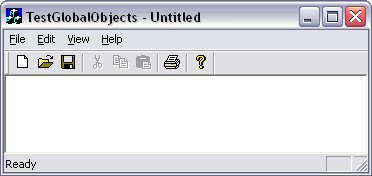
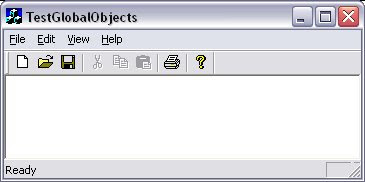
Suppose if my Application name is TestGlobalObjects then see the default title bar with Untitled.

Changing Document Prefix Title to Postfix
See the below code modification in CMainFrame::PreCreateWindow() removing the FWS_PREFIXTITLE and see the change in window title bar caption.
BOOL CMainFrame::PreCreateWindow(CREATESTRUCT& cs)
{
    if( !CFrameWnd::PreCreateWindow(cs) )
 return FALSE;

    // Removing Pre Fix style
    cs.style &= ~FWS_PREFIXTITLE;
    return TRUE;
}

Removing document from title
See the below code and see the Untitled removed from window title bar on executing the below code.
BOOL CMainFrame::PreCreateWindow(CREATESTRUCT& cs)
{
   if( !CFrameWnd::PreCreateWindow(cs) )
  return FALSE;

    // Removing the Add To Title style
    cs.style &= ~FWS_ADDTOTITLE;
    return TRUE;
}

Monday, February 23, 2009
[VC++] Map or Unmap network drive
Are you looking for a standard 'Map Network Drive' dialog for mapping a network resource as a local drive to your Computer ? Or you may be looking for ‘Disconnect Network Drives' dialog box for disconnecting network resource mapped as your local drive ? Here is how to show such dialogs for mapping or disconnecting network resources using two APIs WNetConnectionDialog() and WNetDisconnectDialog(),
Showing 'Map Network Drive' dialog box


Showing 'Map Network Drive' dialog box
// Show Map Network Drive dialog
DWORD dwNetConnectRes = WNetConnectionDialog( 0, RESOURCETYPE_DISK );
if( NO_ERROR == dwNetConnectRes )
{
    // successfully mapped the drive
}
else if( -1 == dwNetConnectRes )
{
    // User canceled
}
else
{
    // Mapping network drive failed
}
Above code when executed will display the 'Map Network Drive' dialog as shown below. For mapping a network resource press the Browse... button and select the network resource and press Finish.

Showing 'Disconnect Network Drives' dialog box
// Show Disconnect Network Drives dialogSee the below Disconnect Drives dialog displayed in my machine(with two network resources mapped already) on executing the above code. To disconect just select and press OK button.
DWORD dwNetDisConnectRes = WNetDisconnectDialog( 0, RESOURCETYPE_DISK );
if( NO_ERROR == dwNetDisConnectRes )
{
// successfully unmapped the drive
}
else if( -1 == dwNetDisConnectRes )
{
// User canceled
}
else
{
// Disconnecting network drive failed
}

For availing the above APIs you may need to incude header file winnetwk.h and link to mpr.lib.
Subscribe to:
Posts (Atom)


 Posts
Posts