Have you ever come up with some problems while using windows installer for installing components ? Here is an issue which is widely seen, when trying to install some application using msi installer you will be shown with a message "The Windows Installer service on Local Computer started and then stopped. Some services stop automatically if they have no work to do, for example, the Performance Logs and Alerts service." and installation stops. This may be due to the reason, the Windows Installer files that are on your hard disk are damaged or are missing.
Solution
For fixing this issue you may need to register the Windows installer or reinstall windows installer. For registering Windows installer do the below steps,
1. Take Start->Run
2. In the Run window enter msiexec /unregister and press OK
3. Again in the Run window enter msiexec /regserver and press OK
Now try installing with Windows installer everything will work fine!.
Wednesday, April 29, 2009


Monday, April 27, 2009
[Utility] 'Over Disk' visualize your disk usage with a Radial map
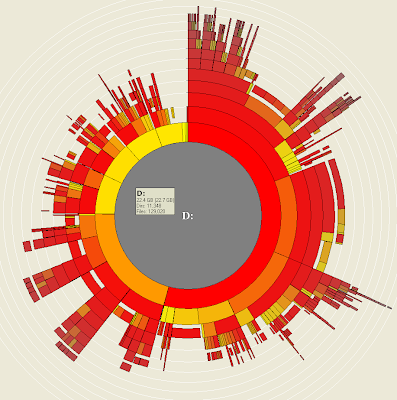
In my previous post I introduced you a tool SpaceSniffer for visualizing your disk usage. Let me show you one more disk usage visualizer OverDisk, which display the disk usage as a radial map. You can select a drive or directory for analyzing with OverDisk and you will be provided with a radial map showing each items inside the selection. On mouse over the details of the folders will be shown. On further selection on the items displayed you will be traversed to the selected folder's radial map. This Windows tool can download from here.

Saturday, April 25, 2009
[Utility] Visualize drive space with 'SpaceSniffer'
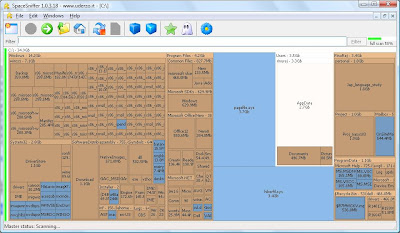
SpaceSniffer is drive space visualizer utility for windows user. It is a utility that gives you an idea of how folders and files are structured on your disks. You will have immediate perception of where big folders and files are situated on your devices.
Start a scan process and see the overall situation. Bigger are the elements on the view, bigger are folders and files on your disk. You need more detail on a big folder? Just single click on it. The selected element will be detailed with its content. Start a scan process and see the overall situation. Bigger are the elements on the view, bigger are folders and files on your disk. You need more detail on a big folder? Just single click on it. The selected element will be detailed with its content. You can also filter on file size, file date and combine all filters.
Download SpaceSniffer and give a try.
Start a scan process and see the overall situation. Bigger are the elements on the view, bigger are folders and files on your disk. You need more detail on a big folder? Just single click on it. The selected element will be detailed with its content. Start a scan process and see the overall situation. Bigger are the elements on the view, bigger are folders and files on your disk. You need more detail on a big folder? Just single click on it. The selected element will be detailed with its content. You can also filter on file size, file date and combine all filters.

Download SpaceSniffer and give a try.
Friday, April 24, 2009
[Utility] 'Jing' screen/video capture tool
Do you want to try a sophisticated Screen/Video capture tool ? I suggest Jing. I found myself comfortable with this free tool. I was taking snapshots and mark on the same in a traditional way, Prnt Screen -> Paste to mspaint -> Mark there -> Save and use. If everything available in a single easy to use tool then you will opt the same right ? 


You can take snapshot, mark, highlight and quote on it. Jing also provides video capture. So go for below steps and make a trial run,
2. Install Jing.
3. Run Jing, you can see a round sun appearing at middle of your screen and set to the top middle screen.
4. Mouse over the yellow sun.
5. Select the capture option.
6. Select the area/window.
7. Press Save button displayed in the button panel shown.
You can run video capture in similar way. Just see a snapshot created/edited with Jing.

Share what you captured to Every one !!!
Just tell Jing where to send the screenshot and—BAM!—it's there and ready to share. When you send to a destination like Screencast.com or Flickr, Jing even places a hyperlink on your clipboard.
Remember, if you are a Windows user, you should have Windows XP or Vista and .NET Framework 3.0 for running Jing. Mac users need Mac OS X 10.4.11, or 10.5.5 or later and QuickTime 7.5.5 or later.
Thursday, April 23, 2009
[Utility] 'Circle Dock' a quick launcher for you!
Are you thinking of having a Circular & Spiral dock with cool looks, as a quick launcher for your Windows ? Then here is a cool open source Circle Dock for you.

As the name suggest its circular and spiral ! Its time for removing the messy desktop icons and bring Circular Dock, save the space/time and spice your desktop. I am sure your colleague will say wow !
For taking this to your desktop just follow the below steps,
1. Download Circle Dock from here.
2. Run Circle Dock.
3. Drag and drop the applications to the Circle Dock.
4. Click on the icon shown on Circle Dock of the application will launch it!
Remember you should have WindowsXP or Vista, .Net Framework 2.0 should be installed and a some what recent graphics card. So just try it and discover lot more (untold by me) features available !!!

As the name suggest its circular and spiral ! Its time for removing the messy desktop icons and bring Circular Dock, save the space/time and spice your desktop. I am sure your colleague will say wow !
For taking this to your desktop just follow the below steps,
1. Download Circle Dock from here.
2. Run Circle Dock.
3. Drag and drop the applications to the Circle Dock.
4. Click on the icon shown on Circle Dock of the application will launch it!
Remember you should have WindowsXP or Vista, .Net Framework 2.0 should be installed and a some what recent graphics card. So just try it and discover lot more (untold by me) features available !!!
Subscribe to:
Posts (Atom)


 Posts
Posts